Tono app icon

Tono

Handy Apps · Music

Turn videos into MP3s and songs into ringtones

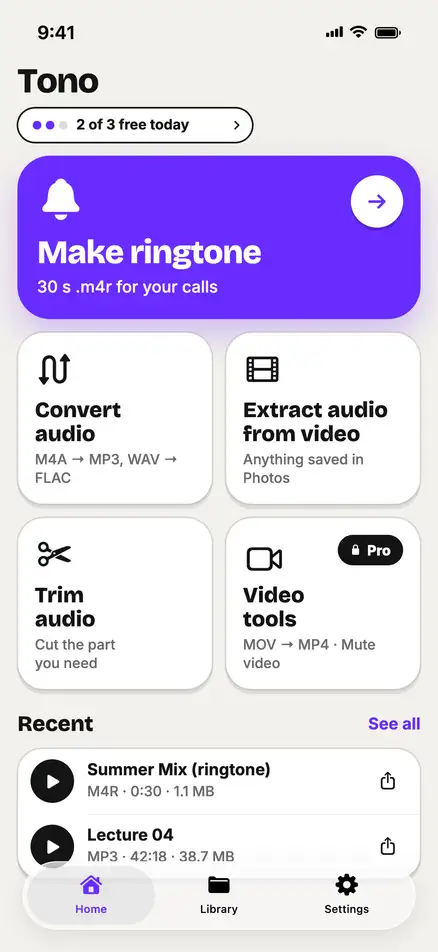
Keep the sound of any video from Photos or Files, convert audio between formats and make a 30-second ringtone — on-device, nothing uploaded.

Free on the App Store · iPhone

audio formats: MP3 M4A M4R WAV FLAC AIFF ALAC
7audio formats: MP3 M4A M4R WAV FLAC AIFF ALAC
ringtones, picked on the best part
30 sringtones, picked on the best part
free conversions
3 / dayfree conversions
every file stays on your iPhone
0 uploadsevery file stays on your iPhone

Features

Everything it does, with real numbers.

Ringtones

A ringtone from the best part

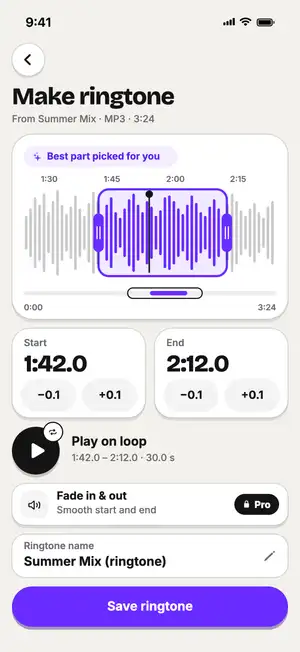
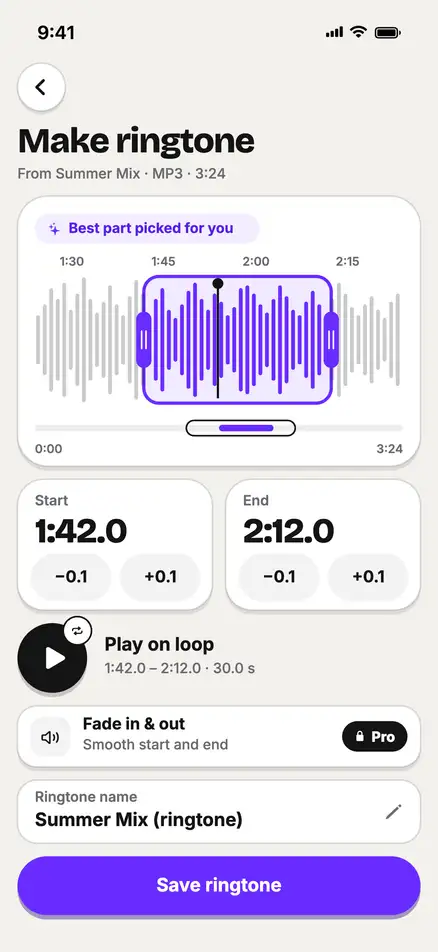
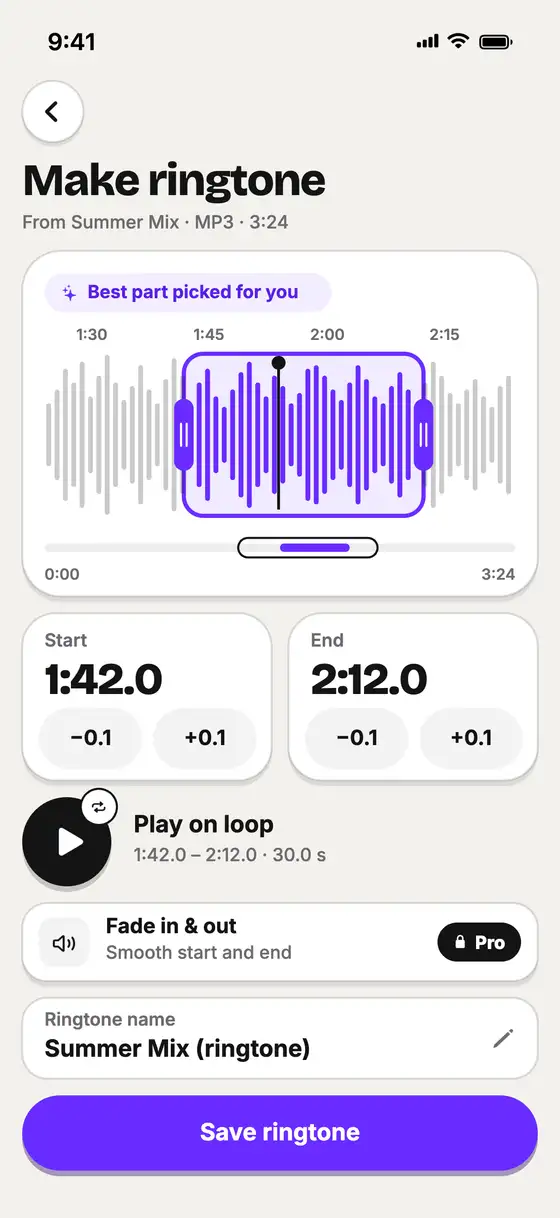
Pick a song or video and Tono places a 30-second window on the loudest part. Drag it, nudge the start and end by 0.1 s, play it on a loop and save an M4R. iOS doesn’t let apps set ringtones directly, so Tono walks you through the 3 steps.

SONG3:24
RINGTONE0:30
M4R · 1.1 MB
Guide: Make a ringtone on iPhone from any song →
Ringtone editor: 30-second window from 1:42.0 to 2:12.0, play on loop, Save ringtone
Best part picked for you

Video to audio

Keep just the sound of a video

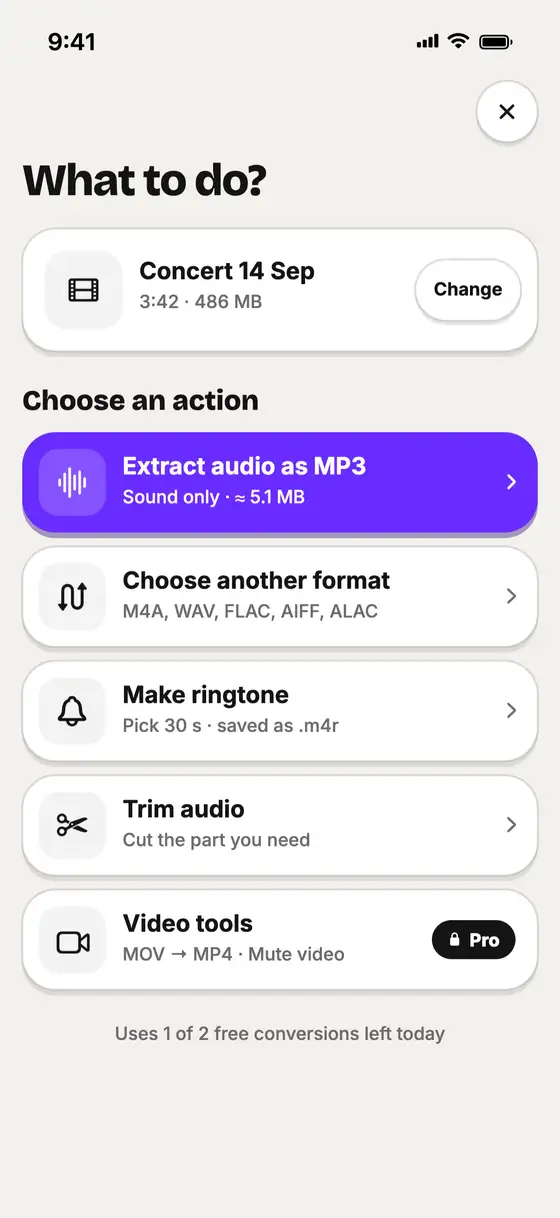
Open a video from Photos or Files — or share it to Tono from another app — and choose what to do: extract the sound as an MP3, pick another format, or make a ringtone.

VIDEO486 MB
MP3≈ 5.1 MB
−99 %
What to do screen for a 486 MB concert video: Extract audio as MP3, about 5.1 MB
486 MB → ≈ 5.1 MB

Convert

Any format, size shown first

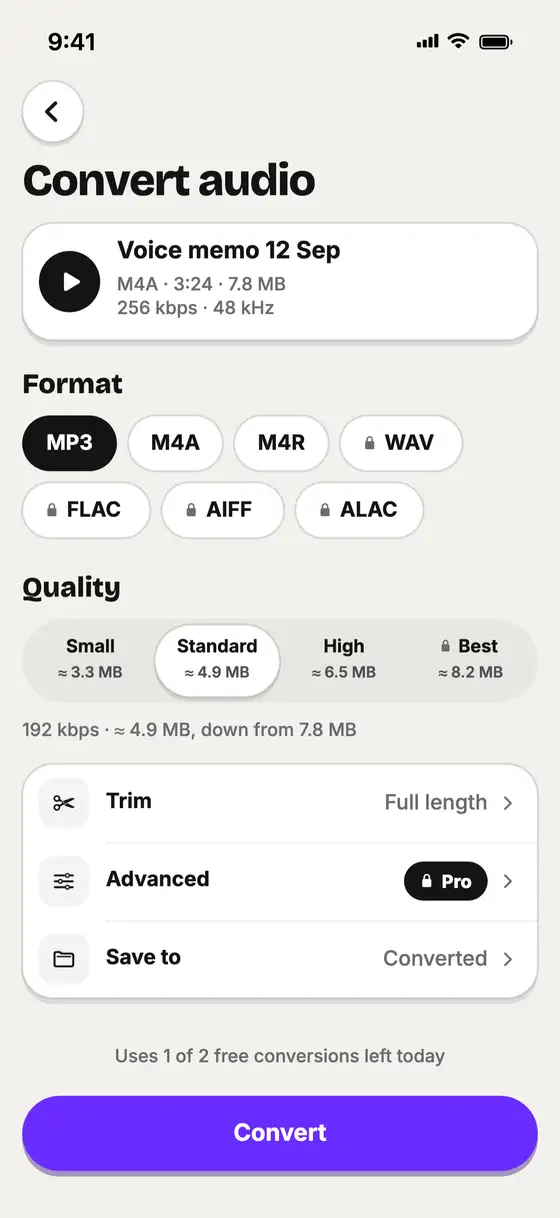
Convert between MP3, M4A, M4R, WAV, FLAC, AIFF and ALAC, and see the file size before you start. Free: MP3 and M4A up to 192 kbps. Lossless formats and 320 kbps are Pro.

M4A7.8 MB
MP34.9 MB
−37 %
Convert audio: a 7.8 MB M4A voice memo to MP3 at 192 kbps, about 4.9 MB
37 % smaller

Batch

Convert many files at once

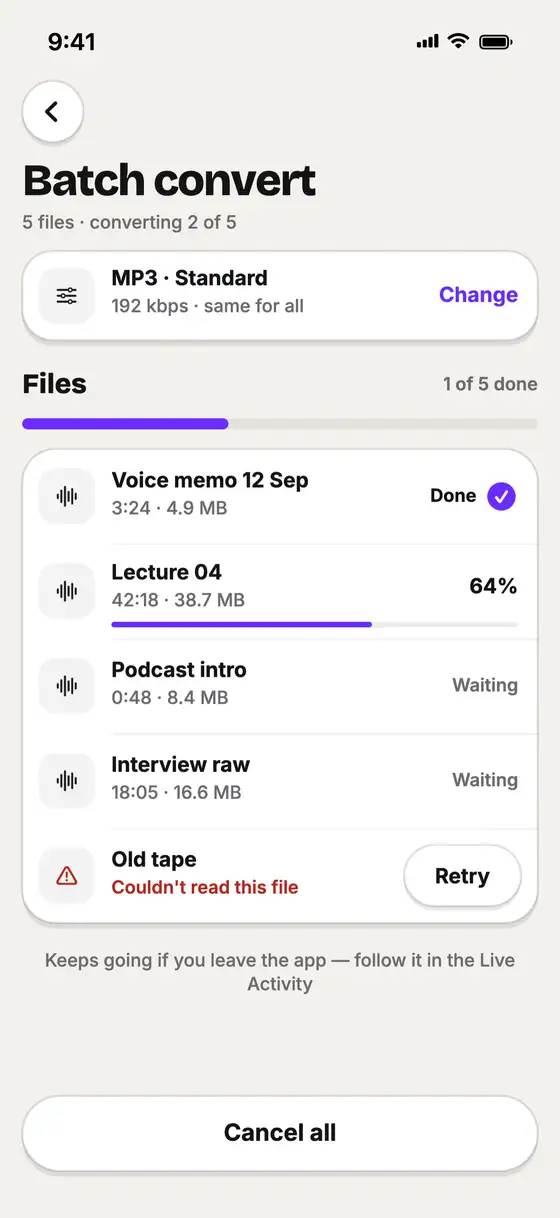
Pick several files and convert them with one setting. The queue keeps going if you leave the app — follow it in the Live Activity. Batch conversion is a Pro feature.

FILES5
SETTINGMP3 · 192
Pro
Batch convert: 5 files to MP3 Standard, 2 of 5 converting, the rest waiting
5 files, one setting

How it works

Three steps to a new file.

  1. 1

    Pick a file

    From Photos, Files or your library — or share it to Tono from another app.

  2. 2

    Choose what to do

    Ringtone, MP3, another format or a trim. The size shows before you start.

  3. 3

    Save or share

    Save to Files, share, or open in another app. Everything is in your Library too.

Made for

Made for the sounds you keep.

  • Ringtones

    A 30-second M4R from any song or video

  • Voice memos

    Share to Tono, convert to MP3

  • Concert clips

    Keep just the sound of a video

  • Lectures & podcasts

    Long recordings to MP3 (over 10 min with Pro)

  • Lossless audio

    WAV, FLAC, AIFF and ALAC with Pro

  • The Files app

    Results land in a «Tono» folder

Also inside

Trim audio to the part you need

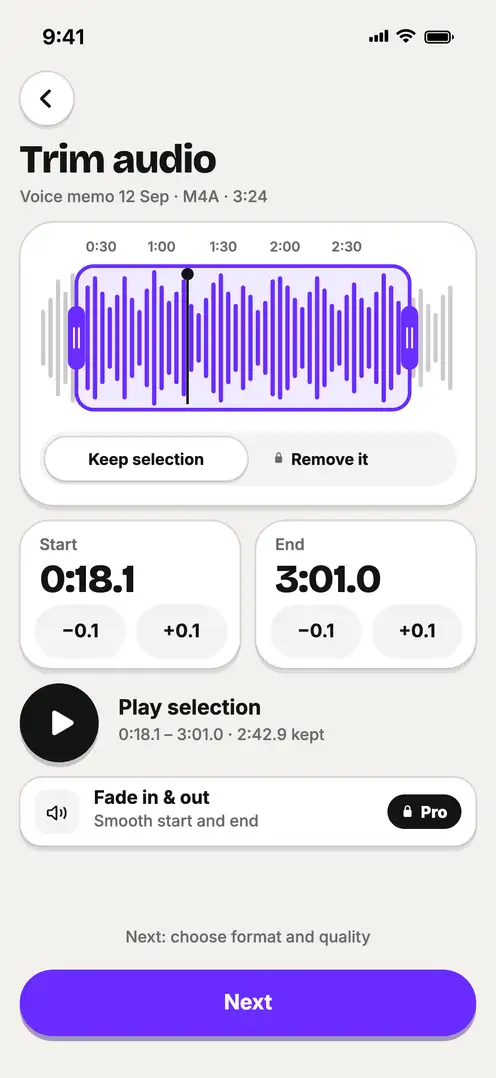
Drag the handles, nudge the start and end by 0.1 s and play the selection before you save. Removing the selection, fades and the video tools — MOV to MP4 and mute video — come with Pro.

Trim with handles±0.1 s stepsVideo tools with Pro
Trim audio: selection from 0:18.1 to 3:01.0 with Keep selection and Play selection

Your files never leave your iPhone

Converting, trimming and ringtones run on your iPhone. No servers for your files, no account, no ads.

  • Works offline

    No file uploads — every conversion runs on-device.

  • No account, no tracking

    No sign-up, no ad identifiers, no tracking prompt.

  • Your files, in Files

    Results are saved in the «Tono» folder on your iPhone.

FAQ

Questions, answered

Still stuck? Write to support — a real person answers, usually within a day.

Contact support →

Is Tono free?

Yes. Free: 3 conversions a day, files up to 10 minutes, MP3 and M4A up to 192 kbps, and 1 ringtone. Tono Pro (in-app subscription) removes the limits and adds lossless formats, 320 kbps, batch conversion, fades and the video tools. There are no ads in either version.

Can Tono set my ringtone directly?

No — iOS doesn’t let apps set ringtones. Tono saves an M4R and shows the 3 steps: save it to Files, import it in GarageBand and share it as a ringtone, then pick it in Settings → Sounds & Haptics. On a Mac you can also drag the file onto your iPhone in Finder.

Which formats does it support?

In: MP3, M4A / AAC, ALAC, WAV, AIFF, CAF, FLAC and the sound of MP4, MOV and M4V videos. Out: MP3, M4A, M4R, WAV, FLAC, AIFF and ALAC. OGG, Opus, WMA, AMR and MKV aren’t supported, and protected (DRM) files can’t be converted.

Does it upload my files?

No. All conversion happens on your iPhone. Tono has no servers for your files and no account.

Where are my converted files?

In the Library tab, and in the Files app under On My iPhone → Tono. You can rename, move or delete them there.

Can I convert a video’s sound to MP3?

Yes. Pick a video from Photos or Files and choose «Extract audio as MP3». Tono also shows the expected size before you start.

Get Tono

Free on the App Store · In-app purchases · iPhone

Download on theApp Store
Get on the App Store