Video Compressor · Guide
How to Compress a Video for WhatsApp on iPhone (2026)
WhatsApp caps videos at 16 MB in a chat. Here are two ways to make any iPhone video fit — one free and built in, one exact to the megabyte.
On this page6 sections
Quick answer
WhatsApp sends videos up to 16 MB in a chat. To fit, lower the resolution to 720p or compress to an exact size. Fastest: Video Compressor → Send to → WhatsApp — it aims just under 16 MB and keeps the date and location.
- Chat limit: 16 MB per video. Sent as a document: up to 2 GB.
- Free fix: record in 720p, or trim the clip in Photos.
- Exact fix: Video Compressor hits just under 16 MB in one tap.
Why WhatsApp rejects your video
WhatsApp re-encodes every video you send in a chat and won’t take files over 16 MB. A minute of 4K from an iPhone is roughly 170–400 MB, so even a short clip is far over. The limit depends on how you send it:
| Where you send it | Limit | Good to know |
|---|---|---|
| WhatsApp chat | 16 MB | Re-compressed on send |
| WhatsApp as a document | 2 GB | Original quality, no preview |
| WhatsApp Status | 60 s · 16 MB | Longer clips are split |
| Email (Gmail) | 25 MB | Bigger files become a Drive link |
| Discord (free account) | 20 MB | Nitro raises the limit |
Method 1 — Free: use iPhone settings
No app needed. These settings make future videos smaller and help with the one you want to send right now.
Step 1: Record new videos in 720p or 1080p
Settings → Camera → Record Video → 720p HD at 30 fps. A minute of 720p is about 45 MB instead of 170–400 MB in 4K — so a 20-second clip fits WhatsApp as is.
Step 2: Trim the clip in Photos
Open the video → Edit → drag the yellow handles to keep only the part you need → Done → Save Video as New Clip. Half the length is roughly half the size.
Step 3: Send it as a document
In a WhatsApp chat tap + → Document → Choose Photo or Video. Files up to 2 GB go through untouched — but the other person gets a file, not a playable preview.
Method 2 — Video Compressor (exact size)
Video Compressor re-encodes the video on your iPhone and lands just under a target size. Your original stays in Photos, so you can always go back.
Step 1: Pick the video
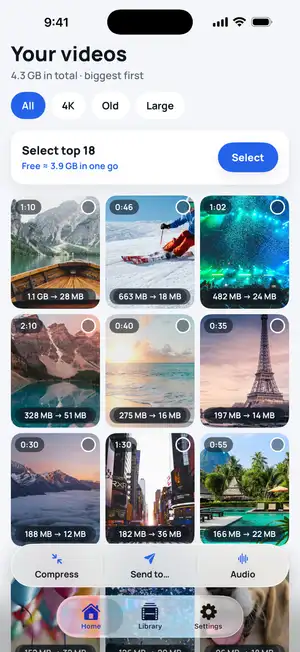
Open Video Compressor. Your newest videos come first, each with the size it will shrink to. Tap the one you want to send.
Fig. 1 — Home: newest videos first
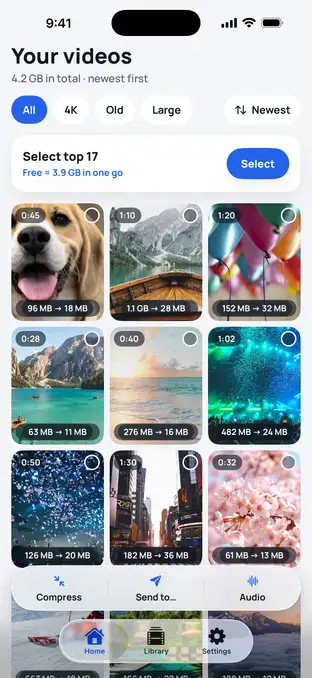
Fig. 1 — Home: newest videos first
Step 2: See the size before you start
The app shows the expected size and why the file shrinks so well — here 1.1 GB of 4K becomes about 28 MB at High quality. No guessing, no trial and error.
Fig. 2 — Expected size and why it shrinks
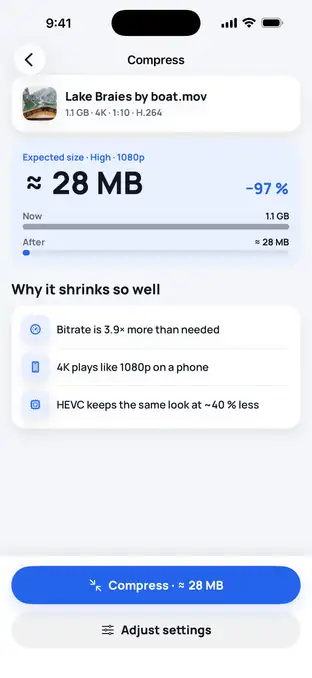
Fig. 2 — Expected size and why it shrinks
Step 3: Send to → WhatsApp
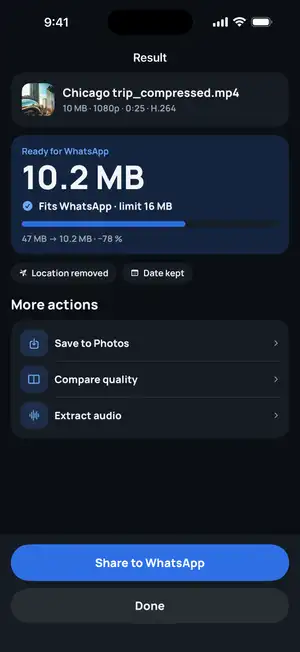
Tap Send to and pick WhatsApp. The app aims just under 16 MB, compresses on your iPhone and shows the result — here 47 MB became 10.2 MB. Then tap Share to WhatsApp.
Fig. 3 — Result: 10.2 MB, under the 16 MB limit
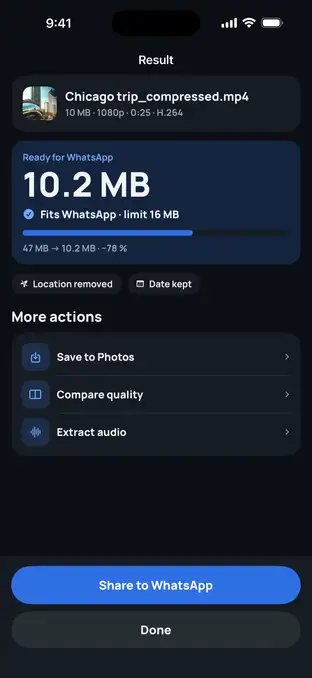
Fig. 3 — Result: 10.2 MB, under the 16 MB limit
Step 4: Compare before you send (optional)
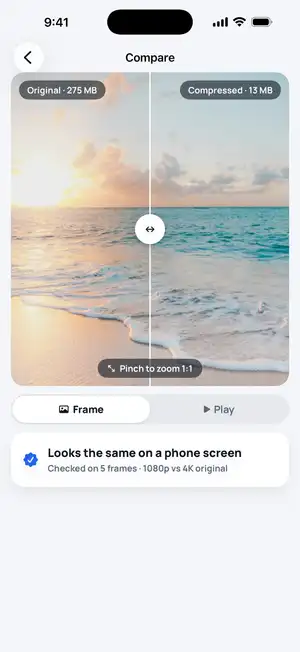
Drag the slider to see the original and the compressed copy side by side. The date is kept, and you choose whether to keep the location.
Fig. 4 — Compare: original vs compressed
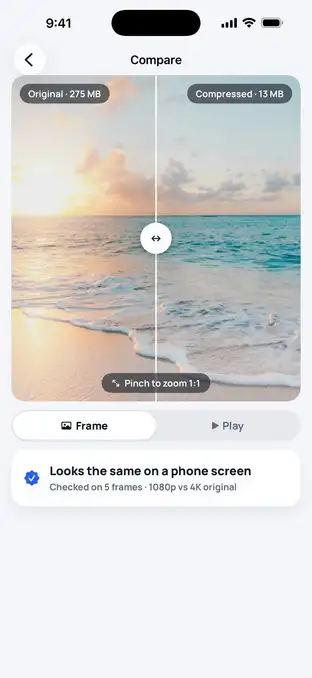
Fig. 4 — Compare: original vs compressed
Troubleshooting
Still too big?
Send it as a document (+ → Document). WhatsApp takes up to 2 GB that way and doesn't compress it again.
Blurry after sending?
WhatsApp compresses videos again when you send them in a chat. Tap HD before sending, or send as a document to keep every pixel.
Video from iCloud takes long?
With Optimize iPhone Storage on, the full video downloads from iCloud first. Stay on Wi-Fi — compression starts right after.
FAQ
What is the WhatsApp video size limit on iPhone?
16 MB for a video sent in a chat. Sent as a document, the limit is 2 GB — but the other person gets a file instead of a playable preview.
Does compressing a video for WhatsApp lose quality?
A little, but on a phone screen it usually looks the same. A lower bitrate and 1080p instead of 4K remove detail you can't see on a 6-inch display. Use Compare to check before sending.
Is Video Compressor free?
Yes. Download and compress for free with no ads and no account. Premium (optional, in-app purchase) unlocks 1080p/4K, HEVC, batch compression, every Send-to target and lossless audio.
Does the app upload my videos?
No. Compression happens on your iPhone. Your videos are never uploaded.